Usage and billing management
Temporal strives to provide full transparency over billing and costs. Use this information to assess your spending patterns, inspect your credit ledger, check your invoice histories, update payment details, and manage your current plan as needed.
For more information on current Temporal Cloud pricing for Actions, storage, and services/support, please visit our Pricing page.
Temporal Provides multiple ways to view your usage and billing data:
- Billing Center allows you to see summary invoices and credits, manage plans, and delete your accounts.
- Coming soon: Billing dashboard enhancements to visualize billing by Namespace over time
- Viewable by Account Owners and Finance Admin
- Usage Dashboards allow you to monitor Namespace level usage over time.
- Coming soon: Additional granularity based on Action Types, grouping by Tags, and grouping by Projects
- Viewable by Account Owners, Finance Admin, Global Admin on an account level. Namespace level usage is visible on the Namespace pages to those with access.
- Billing API allow you to access billing information on a Namespace basis down to an hourly granularity, enriched with Tags and Projects.
The Billing API provides a FOCUS-guided data format that can be ingested into your cloud cost management platform or analytics tooling, or downloaded as a CSV.
- Viewable by Account Owners, Finance Admin
The Temporal Cloud Billing API is in Pre-release.
Current balance
Your current balance card shows the balance for your current billing cycle and the date it was last updated. This balance adjusts with use and appears on the first line of your Invoices table.
Billing cycles normally begin on the first of the month (UTC). The minimum plan fee for your first month is prorated based on your sign-up date.
Recent bill
The "Recent Bill" card displays the previous bill amount.
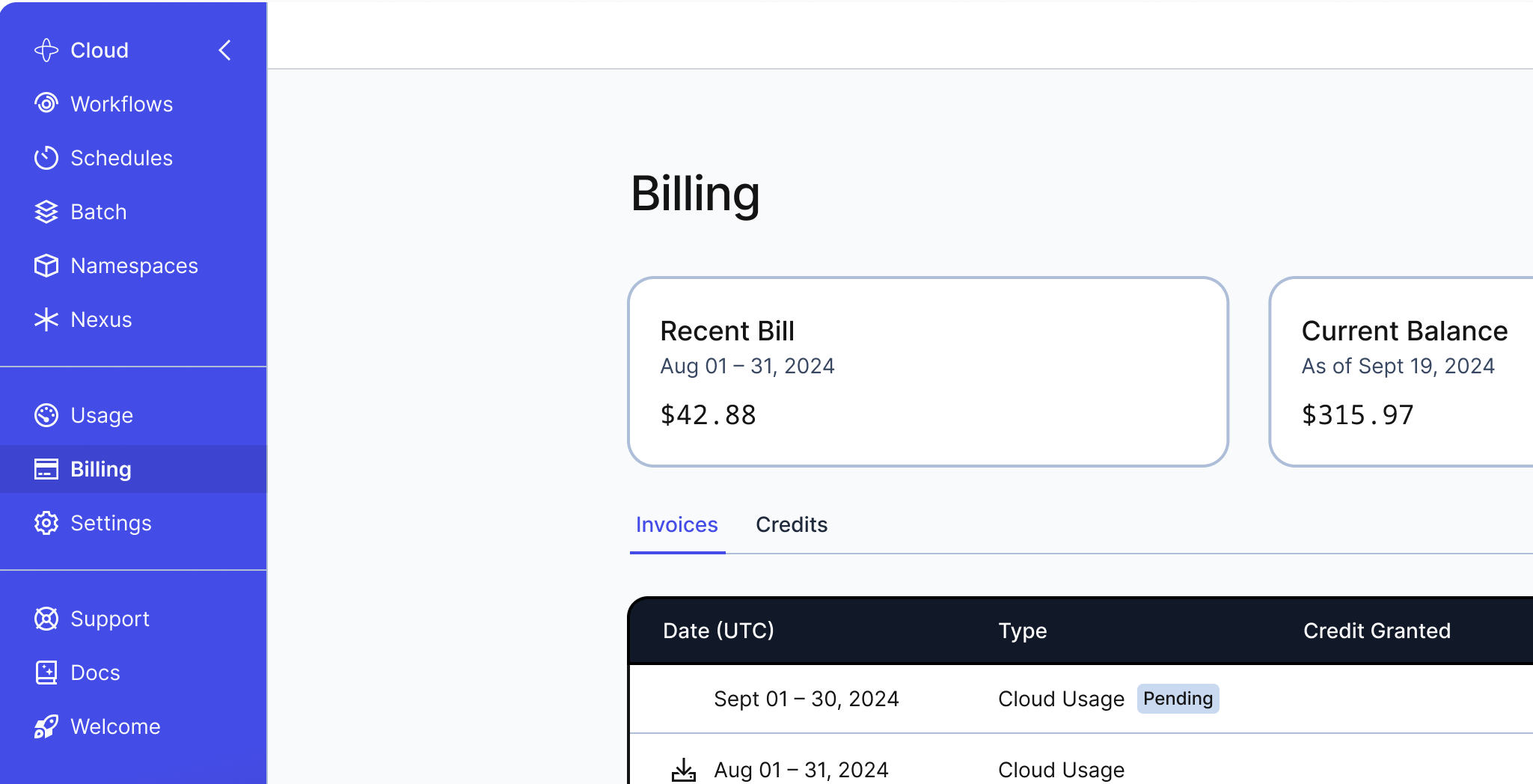
- If you pay your invoices through Stripe, you'll see a Pay Now button. It takes you to the Stripe portal to complete your payment
- If your account is set up for auto-payment, you don’t need to manually pay bills. However, you can choose to make manual payments whenever you wish
Invoices
To review your invoices, follow these steps:
- Click Billing on your left-side vertical navigation.
- Under the Invoices section, select and download the invoice(s) you want to review.
The Invoices table shows the following information:
- Date (UTC): The date range covered by the invoice
- Type: The type of invoice, such as credit purchase or cloud usage
- Status: The current status of the invoice, such as paid or pending
- Credit Granted: The total credits added to your account
- Credit Purchase Amount: The amount paid for purchasing credits
- Credit Usage: The credits used during the billing cycle
- Subtotal: The total amount of the invoice before any adjustments
- Balance Due: The amount to pay after applying credits
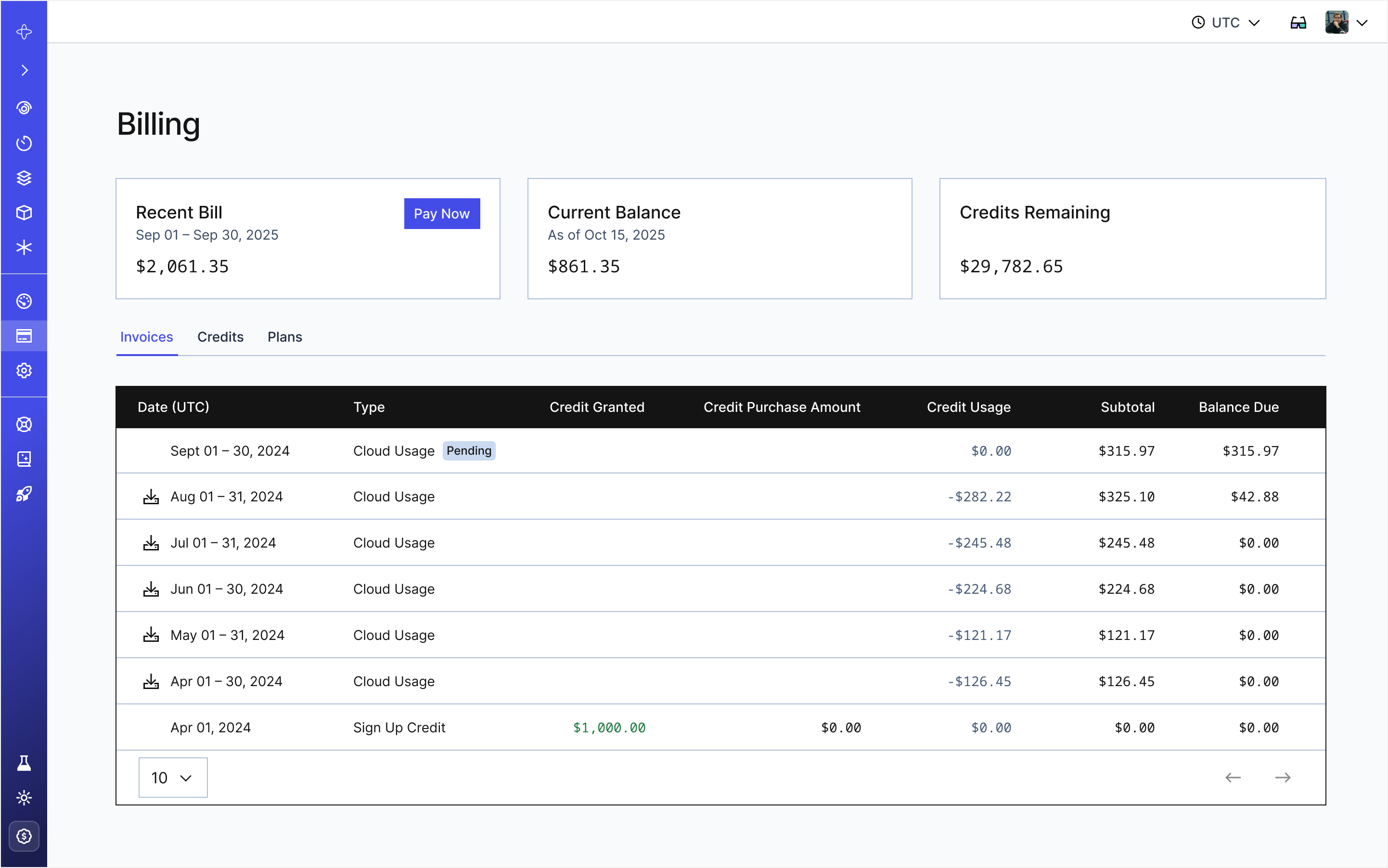
You may download your Invoices prior to this calendar month by clicking the download icon by the date.
During the current billing period, your invoice will not be finalized and the download option will not be available.
Credits
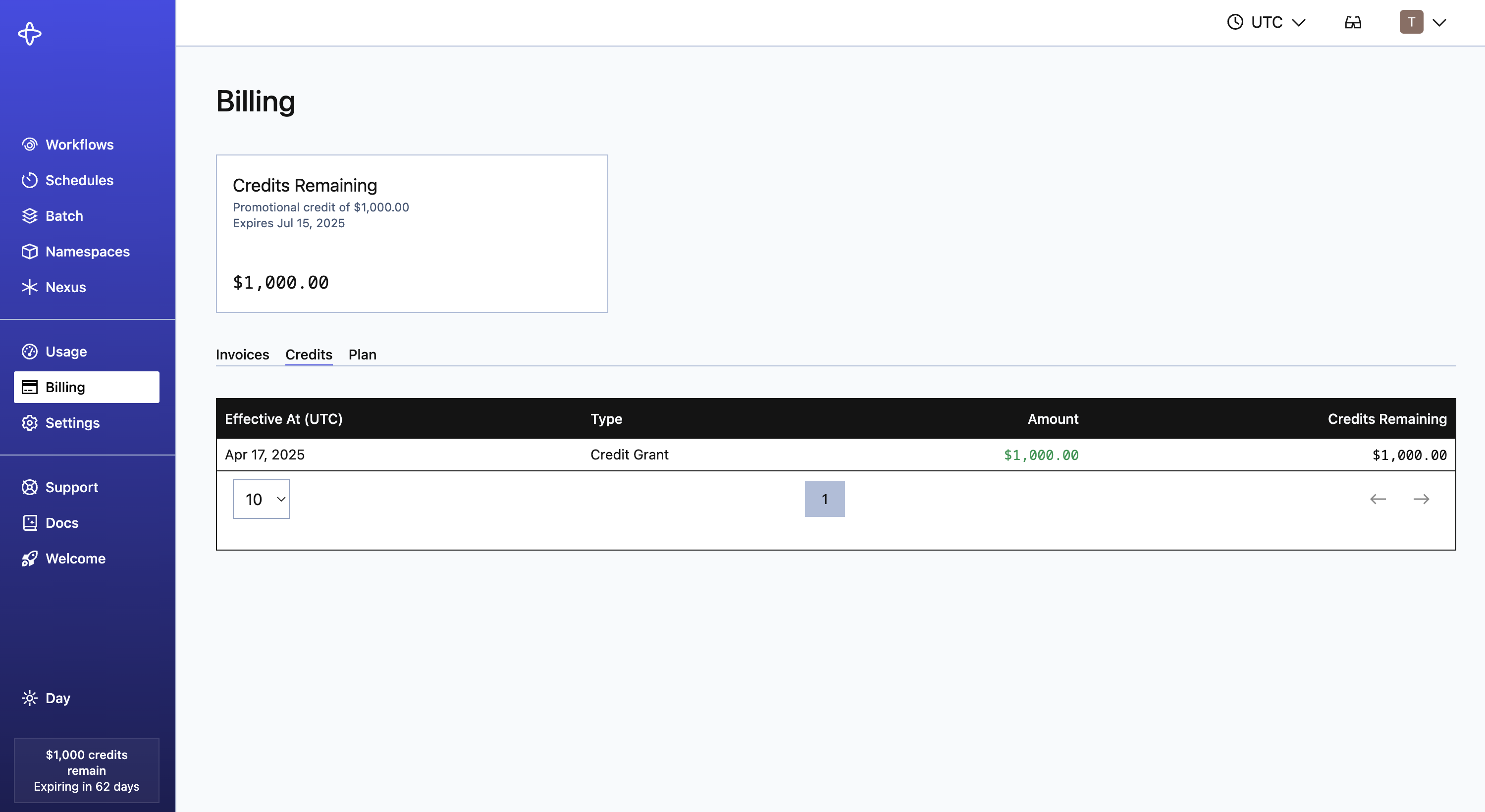
The following information appears under the credits table:
- Effective At (UTC): The date when the credit grant became effective
- Type: Indicates whether the transaction was a deduction, expiry, or grant
- Amount: The credit amount that was granted, deducted, or expired
- Credits Remaining: The remaining credit available in the account
Cost by Namespace
Account Owners and Finance Admins can access a cost column on the Usage page. This allows you to monitor your cost on a per Namespace basis. If your organization separates work by Namespace—for development, production, or different products—you can view costs for each.
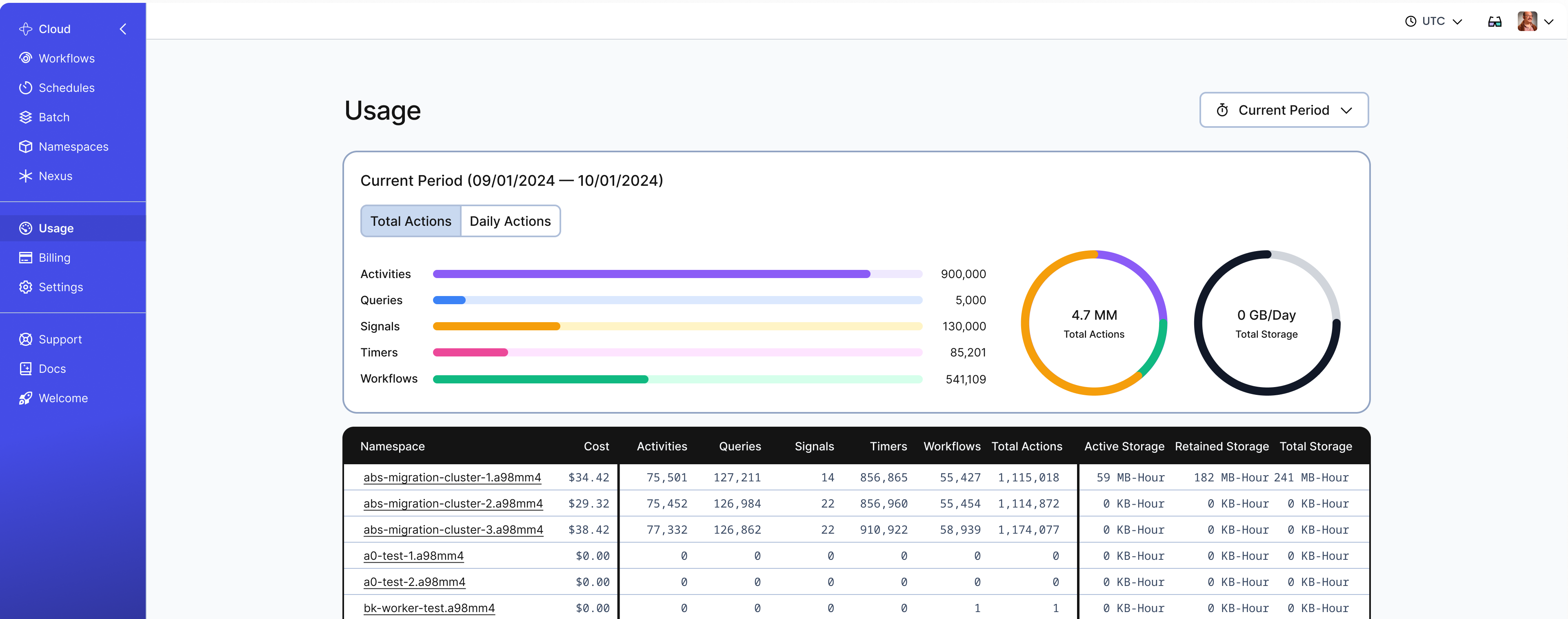
Namespace cost details are not available for "last 90 days" or "last 120 days".
Cost breakdowns distribute the total usage cost to namespaces proportionally based on their metered usage. The proration reflects your effective price, factoring in included Actions/Storage and tiered pricing rates in your Temporal plan.
Plans
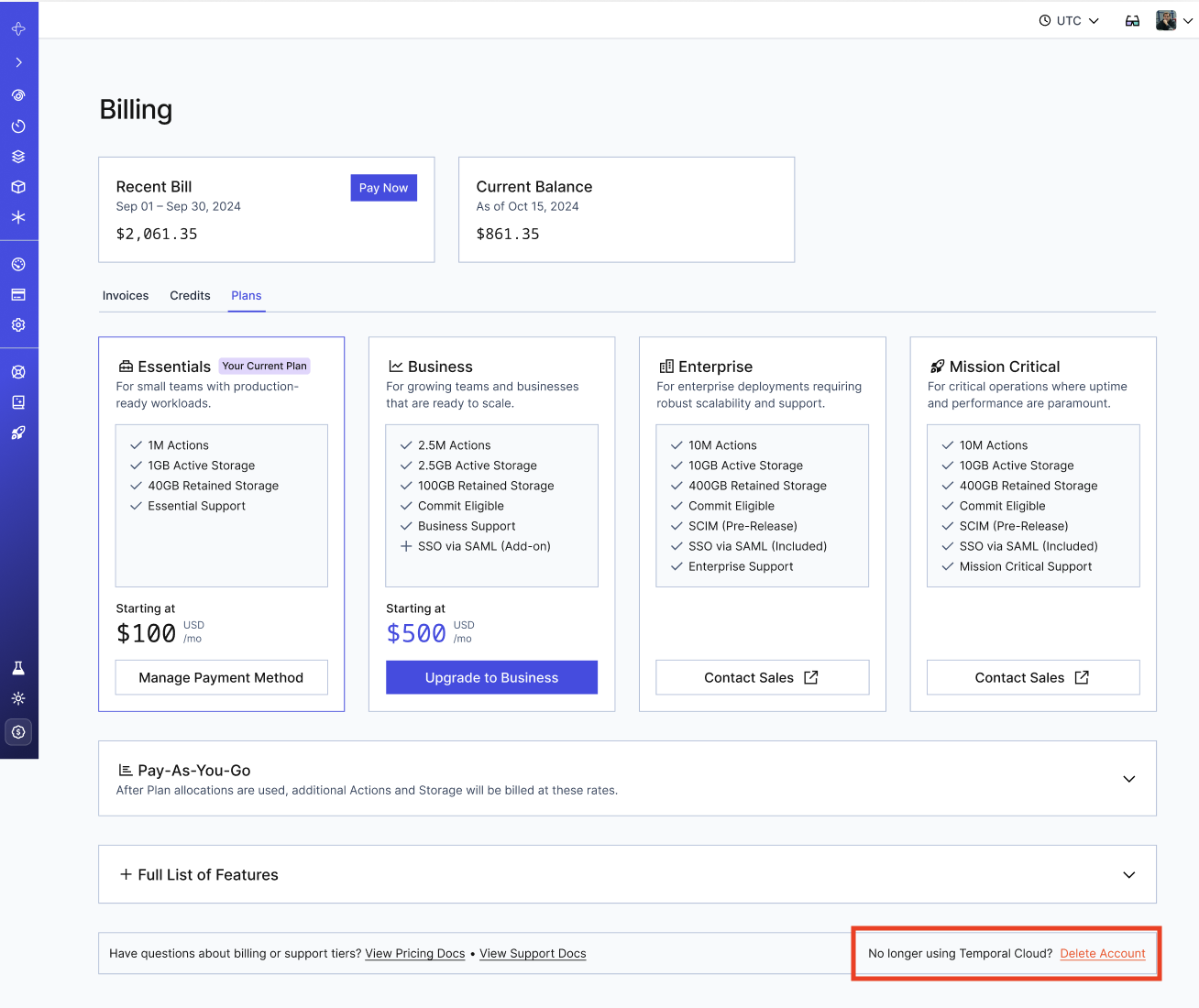
Account Owners and Finance Admins can access their Temporal Plan information on the plans page. For customers on a standard agreement you will be able to:
- View current plan information, pricing details and entitlements
- View other available plans, pricing details and entitlements
- View Pay-as-You-Go pricing rates applicable to your plan
- Upgrade and Downgrade between plans available on a standard agreement
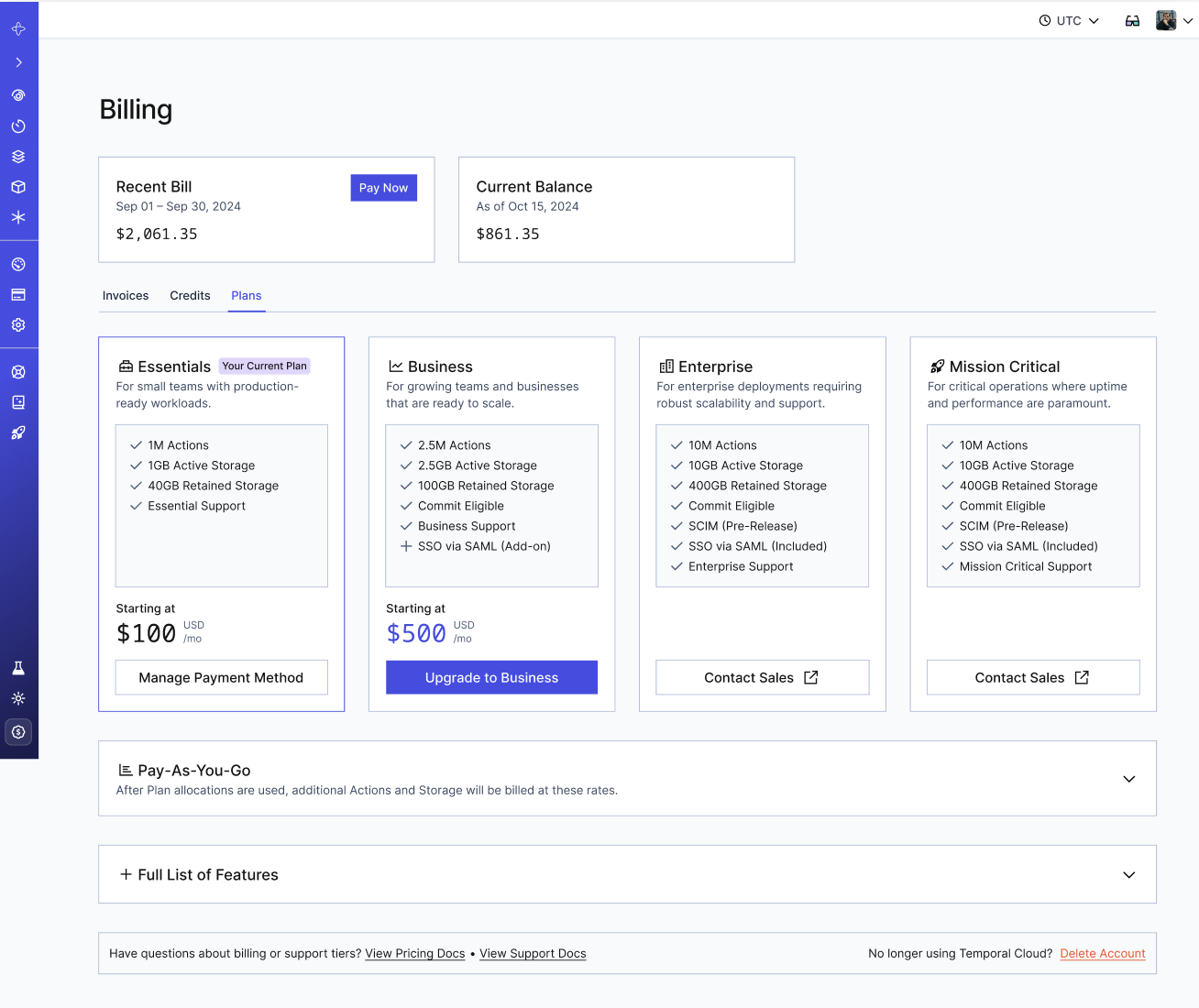
Requests to upgrade your plan are processed immediately and you will be billed on a pro-rated basis for that billing period. Your monthly entitlements will reflect the full volume of included Actions and Storage of the upgrade plan for that billing month. After an upgrade, a downgrade cannot be processed until the following billing period.
Requests to downgrade will be processed immediately. Billing and entitlements will be backdated to the beginning of the billing period.
Account Cancellation
The way you created your Temporal account determines how you can cancel your subscription and remove the account.
-
For accounts managed by our sales team.
Please submit a support ticket so we can help you. -
For accounts created through our self-signup portal.
Account owners can delete their accounts on the Temporal Cloud Billing page, under the Plan tab. If you're no longer using Temporal Cloud, use the Delete Account button to begin the process.-
Permanently deleted accounts will immediately cease billing and be scheduled for full deletion within 72 hours.
-
Account Data and Active Storage will be permanently deleted. Retained Storage will be deleted in accordance with its configured retention period.
-